Flatbed scanners are effectively dead for anyone who moves. They live on a desk, need a power outlet, require a USB cable and driver software, and the moment you need to scan something away from home — at a hotel, a client's office, or an immigration counter — you're stuck using your phone camera and hoping the lighting cooperates.
This Portable Handheld A4 Scanner takes a different approach entirely. It's a self-contained scanning device that fits in a backpack pocket, runs on its own battery, stores files directly to a MicroSD card, and produces clean, properly-exposed scans at up to 900 DPI. No computer required, no software to install, no cables.
After putting it through regular use for documents, contracts, receipts, and the occasional archival photo, here is everything you need to know.
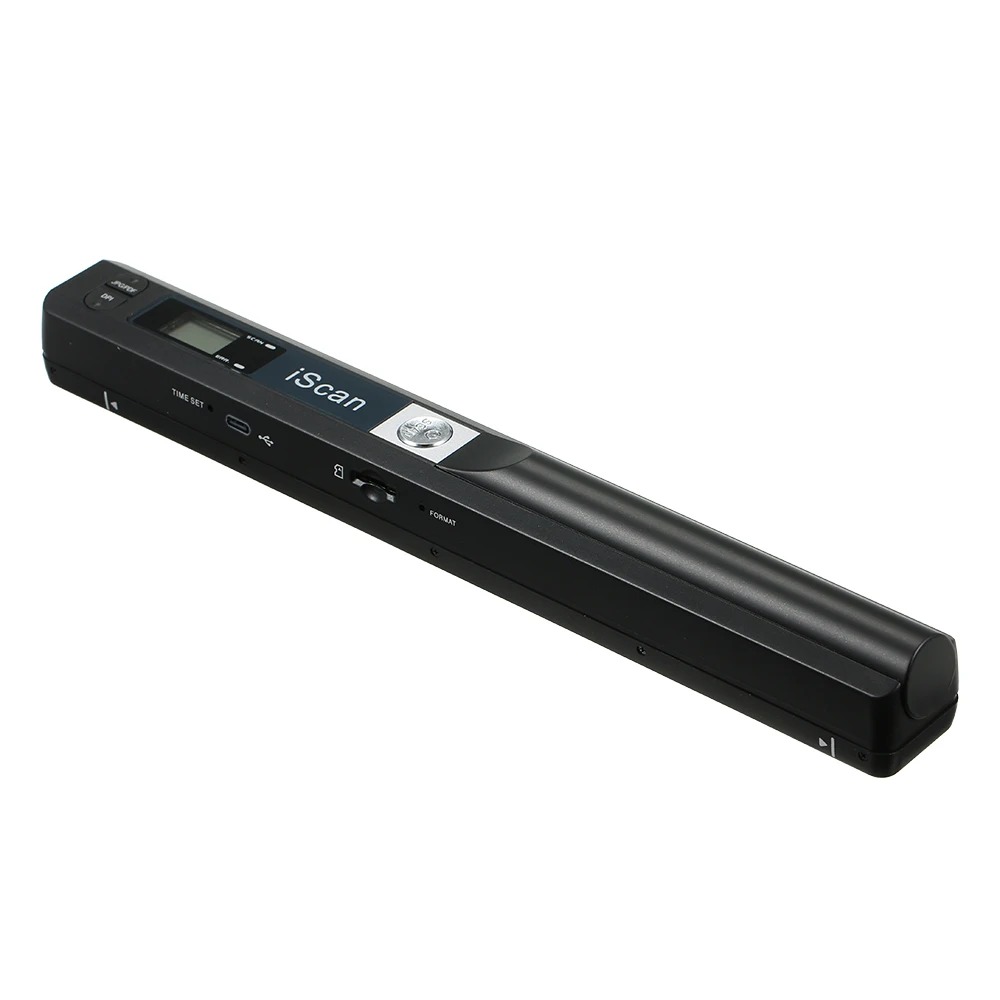
What Is This Portable Handheld A4 Scanner?
The device is a roller-feed handheld scanner — meaning you place it at the top of a page, press the scan button, and roll it slowly down the document. The internal sensor reads the page as you move, stitching the image together in real time. Finished files are written to the MicroSD slot on the side of the unit.
Key hardware specs at a glance:
- Scan resolution: 300, 600, and 900 DPI (selectable)
- Output formats: JPEG and PDF
- Max page width: A4 (216mm / 8.5 inches)
- Storage: MicroSD card slot (card not included, supports up to 32GB)
- Power: Internal rechargeable battery (USB charging)
- Display: Small LCD screen showing DPI setting, format, battery level
- Weight: Lightweight, handheld form factor
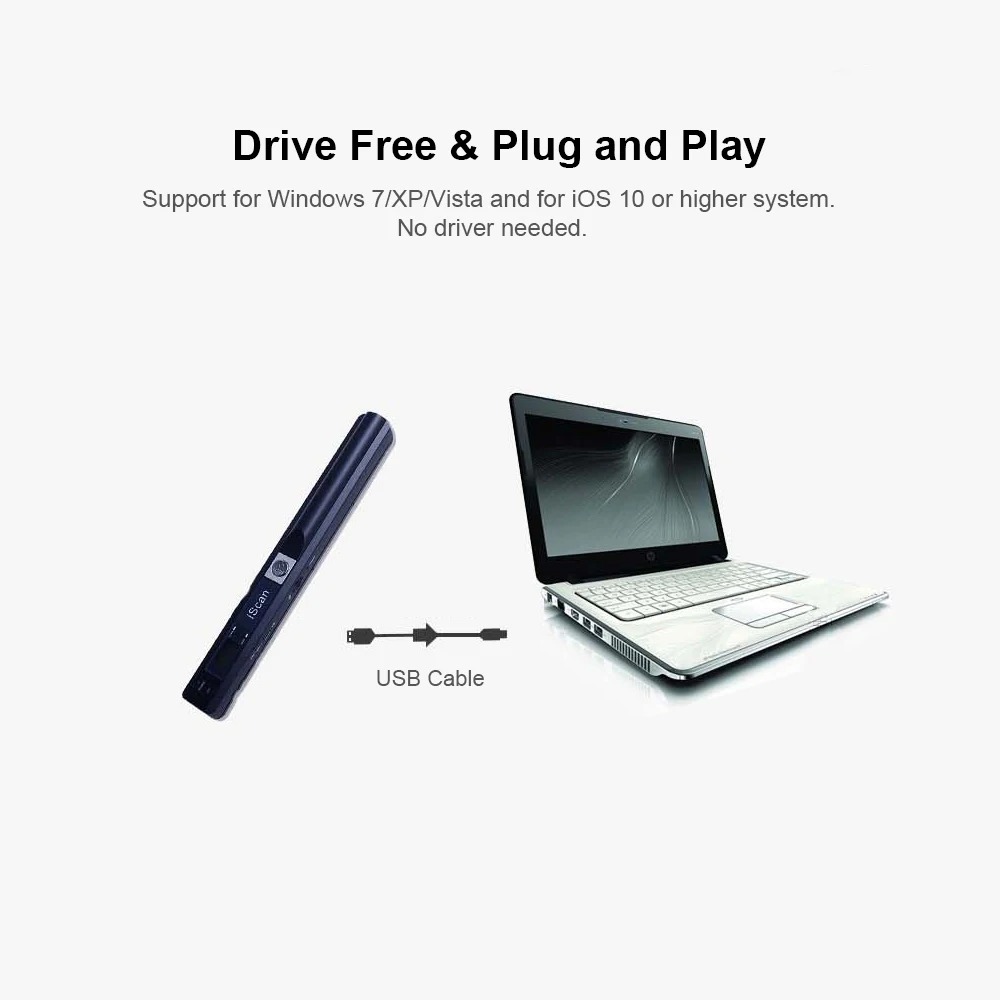
There are no moving parts beyond the rollers, no Wi-Fi or Bluetooth to configure, and no app required. That simplicity is the point.
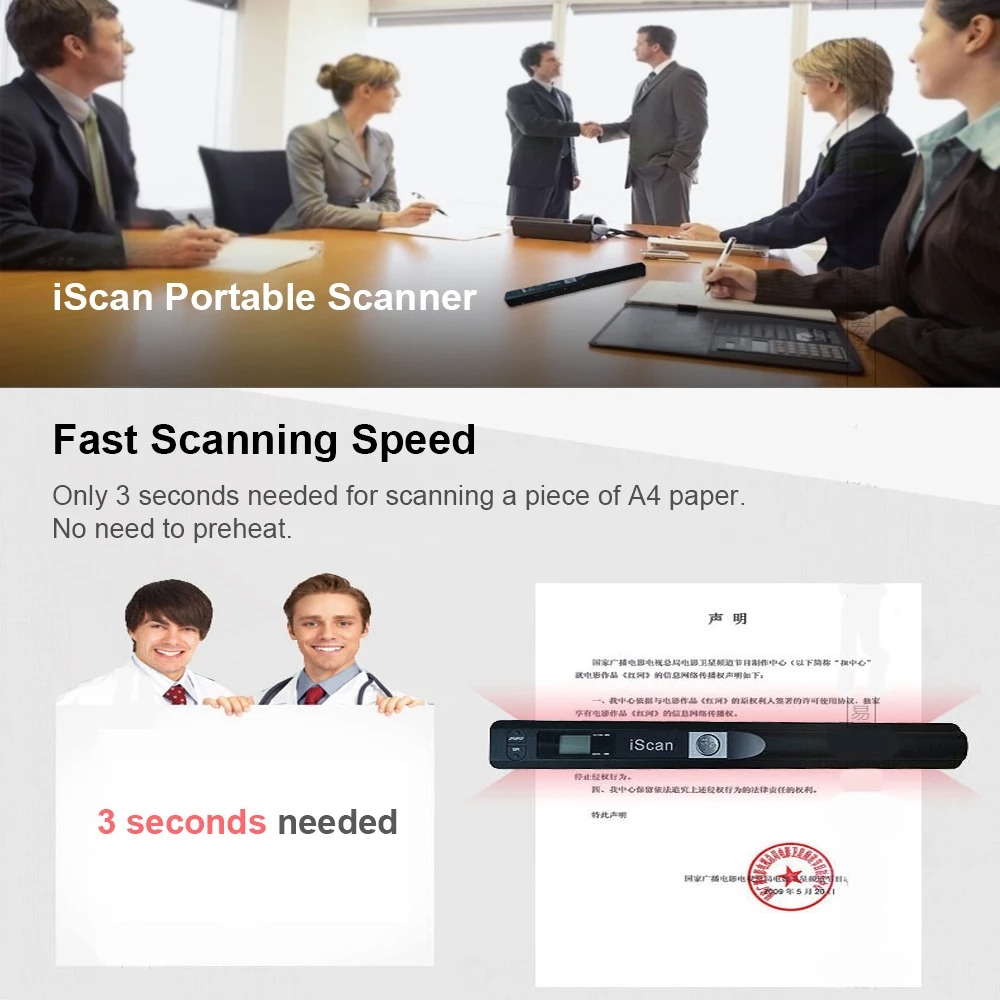
Who Should Buy This Scanner?
This device solves a very specific problem: needing to capture documents reliably, in various locations, without a desk setup. Here are the four groups who get the most out of it.
Business Consultants and Freelancers
If you work across multiple client sites, you've almost certainly been handed a paper contract, NDA, or purchase order that needs to go into a filing system or be sent back signed. A phone camera scan is serviceable but inconsistent — lens distortion, shadows, and keystoning make the text uneven. This scanner produces flat, evenly-lit, properly-scaled scans every time. At 600 DPI, the output is clean enough for DocuSign uploads, legal filing, and professional recordkeeping.
Students and Researchers
Library archives, physical textbooks, lecture notes, and printed research papers all need to get into a digital workflow. Scanning in a library or lecture hall with a handheld device is unobtrusive and fast. At 300 DPI, a full A4 page scans in roughly three to four seconds. A hundred pages takes under ten minutes — significantly faster than photographing each page individually.
Travelers and Expats
Immigration documents, visa paperwork, rental agreements, insurance forms — travel generates an extraordinary amount of paper that needs to be digitized and backed up. Having the scanner in a carry-on bag means you can process and file every document the day it's issued, rather than accumulating a stack and hoping your phone photos are legible.
Real Estate and Legal Professionals
Site inspections, client meetings, and property walk-throughs frequently produce paper records that need to enter a case management system. A handheld scanner eliminates the back-office bottleneck of scanning at the end of the day. Scan on-site, card goes into the computer, files are named and archived before you leave the building.
DPI Settings Explained — Which One Do You Need?
DPI (dots per inch) determines the resolution — and file size — of your scans. Higher DPI captures more detail but produces larger files and takes slightly longer to scan. The three settings map cleanly to different use cases:
| DPI Setting | Best For | Typical File Size (A4) | Scan Speed |
|---|---|---|---|
| 300 DPI | Standard documents, letters, invoices, typed text | ~0.5–1 MB (JPEG) | Fastest (~3–4 sec) |
| 600 DPI | Photos, forms with fine print, signatures, stamps | ~2–4 MB (JPEG) | Medium (~5–7 sec) |
| 900 DPI | Archival quality, small printed text, historical documents | ~5–8 MB (JPEG) | Slowest (~8–12 sec) |
For day-to-day document capture, 300 DPI is sufficient and keeps storage requirements minimal. Jump to 600 DPI for anything that will be submitted officially or viewed at high zoom. Use 900 DPI when you're preserving something irreplaceable and storage space is not a concern.
File Format Options: JPEG vs PDF
The scanner saves files as either JPEG images or PDF documents. Each format has a practical advantage depending on your workflow.
JPEG is the better choice when you need to embed a scan in an email, upload to a web form, or view quickly across any device. Every phone, tablet, and computer opens JPEG natively without additional software.
PDF is preferable when the document needs to be preserved as a single-page record, submitted to a government agency or legal body, or stored in a document management system. PDFs carry metadata, support text layers if you later process them through OCR software, and are the standard format for official submissions.
You switch between formats directly on the device via the LCD control panel — no software required.
How Fast Does It Actually Scan?
Speed depends on DPI setting and how steadily you move the device. At 300 DPI, a full A4 page takes three to four seconds from start to finish. The scanner writes the file to the MicroSD card almost immediately after you lift it from the page — typically under a second of write time.
In practice, scanning a 20-page document at 300 DPI takes about two minutes including the time to reposition the scanner between pages. At 600 DPI, budget five to six minutes for the same stack. These are real-world figures; controlled surface and consistent rolling speed keep quality high.
Handheld Scanner vs Phone Scan App vs Flatbed Scanner
Here is how the three options compare across the criteria that actually matter for document capture on the go:
| Feature | This Handheld Scanner | Phone Scan App | Flatbed Scanner |
|---|---|---|---|
| Works without a computer | Yes — MicroSD storage | Yes — saves to phone | Requires PC/Mac + driver |
| Image quality at max resolution | 900 DPI, flat sensor | Variable (lens, lighting) | 1200–2400 DPI |
| Consistent exposure | Built-in illumination | Ambient light dependent | Built-in illumination |
| Portability | Fits in backpack pocket | Uses phone you already carry | Desktop-only |
| Battery required | Yes (internal rechargeable) | Uses phone battery | Mains power required |
| Price | $59.00 | Free (apps) or low-cost | $80–$300+ |
| Best for | Consistent document work, travel | Occasional quick captures | High-volume office scanning |
The phone scan app wins on zero-additional-cost if you only need to scan occasionally. The handheld scanner wins on consistency and reliability if you scan regularly — especially in environments where lighting is bad, you're scanning bound books, or you need official-quality output on demand.
Shop These Picks
Portable Handheld A4 Scanner
$59.00 Shop Now →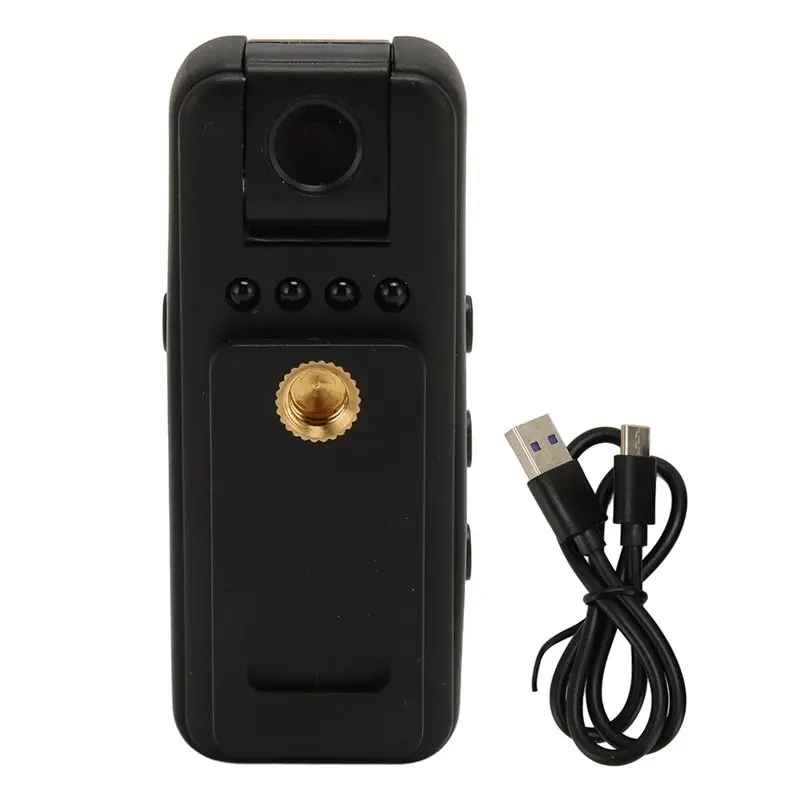
Wearable Body Camera 1080p HD
$24.00 Shop Now →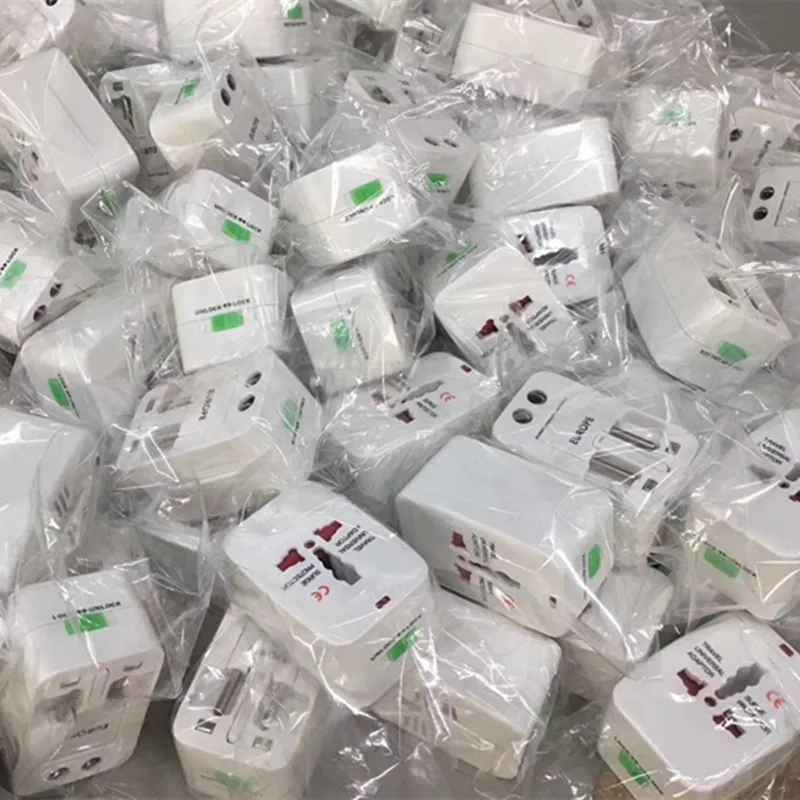
Universal Travel Adapter — 150+ Countries
$24.00 Shop Now →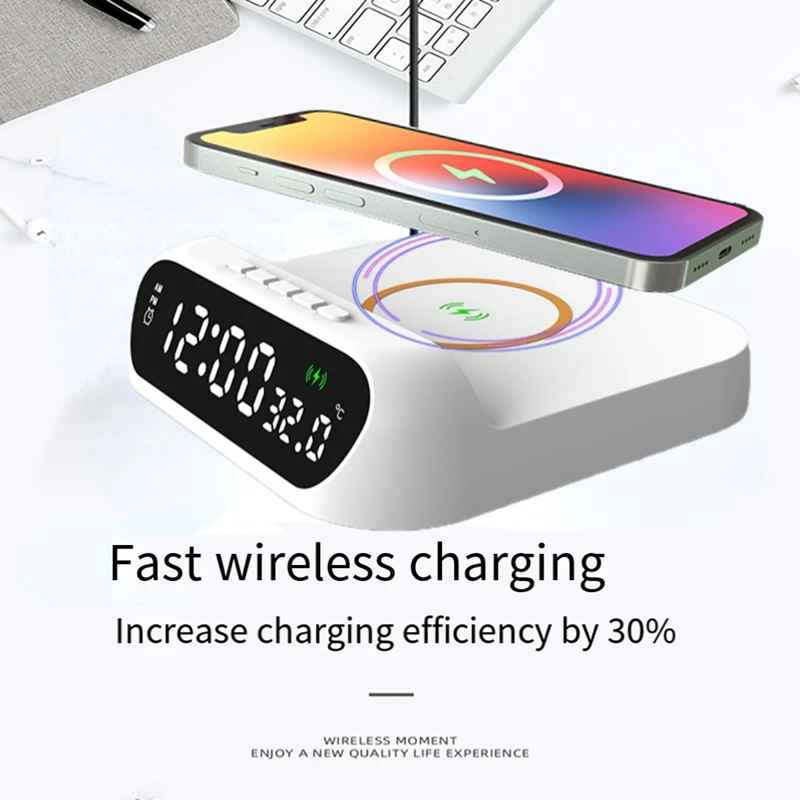
3-in-1 Wireless Charging Alarm Clock
$38.00 Shop Now →Scan anywhere, organize everything
Browse the full BigMoetsy tech gadgets collection — portable, practical gear for people who keep moving.
Browse the ShopFrequently Asked Questions
Does this scanner work without a computer?
Yes, completely. The scanner saves files directly to a MicroSD card (up to 32GB supported). You just insert the card, scan, and the JPEG or PDF file is written immediately. No drivers, no USB connection, no laptop required. You can then transfer files by pulling the card or using a card reader.
What's the maximum page size it can scan?
The scanner supports full A4 pages (210 x 297mm / 8.27 x 11.69 inches), which covers standard letter-size documents used in the US, UK, and most of Europe. It also handles smaller formats including A5, receipts, business cards, and photographs — anything that fits within the A4 width.
How much storage does a 32GB card hold for scans?
At 300 DPI in JPEG format, a single A4 scan is roughly 0.5–1MB. A 32GB card can hold approximately 32,000 to 64,000 scans at standard quality. Even at 600 DPI, where individual files are 2–4MB, you're looking at 8,000–16,000 pages. For most travel or business use, a 32GB card essentially means unlimited capacity.
Can it scan receipts and business cards?
Yes. The scanner handles any document narrower than A4 width. Receipts, business cards, ID cards, photos, and folded documents all scan cleanly. For small items like business cards, you simply place the scanner at the top edge and roll it across — the sensor captures what's beneath it regardless of the item's length.
Is the scan quality good enough for official documents?
At 600 DPI, yes. Scans at 600 DPI capture fine print, signatures, stamps, and form fields with enough clarity for legal and official submissions. Most government agencies, banks, and immigration services accept digital scans at 300 DPI or above. For archival or notarized document work, use 900 DPI to preserve maximum detail.